
readme.md (2273B)
1 ## Default layout 2 Joystick on the left side, encoder on the right. No underglow. 3 4 ### Base layer 5 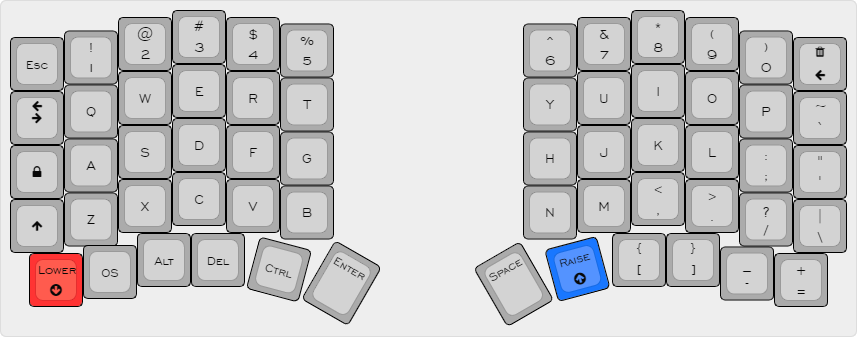 6 The layout can be switched for COLEMAK in the settings layer 7 8 ### Lower layer 9  10 11 ### Raise layer 12 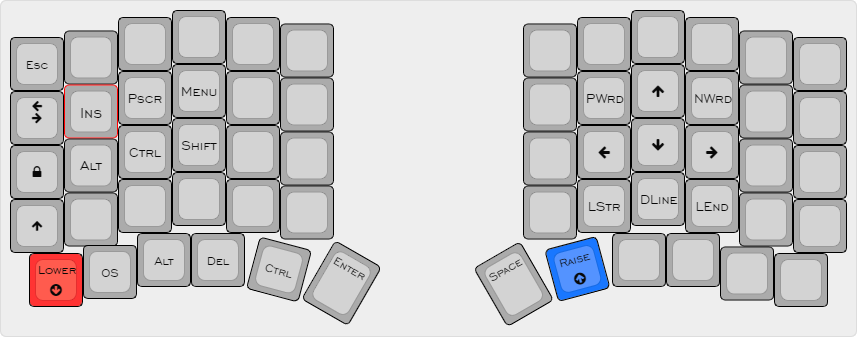 13 14 ### Settings layer 15 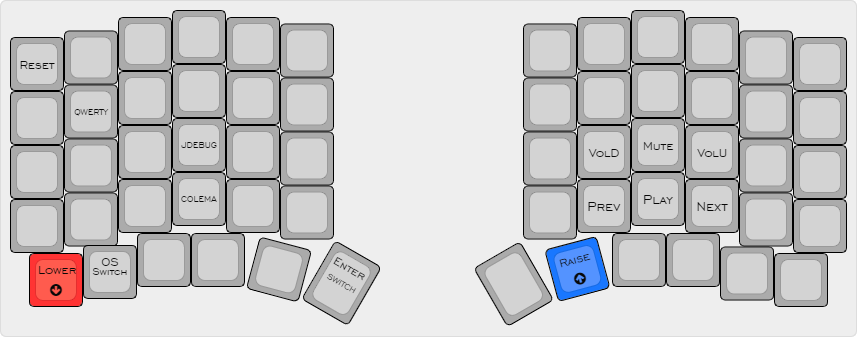 16 17 This layer can be accessed with the following combination: 18 19 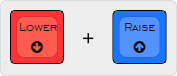 20 21 ## Extras 22 23 ### Keyboard Pet (Luna) 24  25 26 Luna jumps every time you hit Space and will bark at people on the internet if you activate Caps Lock! 27 28 This keyboard pet reacts to your WPM counter: 29 - under 10 -> sit 30 - between 10 and 50 -> walk 31 - over 50 -> run 32 33 ### Joystick 34 The joystick on the left side will act as a controller for games. 35 36 ### Shift + Backspace = Delete 37 This one is pretty self explanatory. 38 39 ### Space / Enter swap 40 The Enter and Space functions can be swapped pressing the left thumb button from the Setting layer. The current mode will be displayed on the left display. This one may be useful to all the gamers out there! 41 42 ### OS Switch 43 Pressing the OS button while on the settings layer will toggle the MAC / WIN mode. This corrects the behaviour of the Alt and Control modifiers. The current selection will be displayed with an icon at the top of the left display. 44 45 ### Media Buttons 46 The right encoder controls the volume and can be pressed to mute. Extra media buttons are hidden away on the settings layer. 47 48 ### WPM indicator 49 Current WPM will be displayed at the bottom of the right screen. 50 51 ### Joystick Debug 52 The JDebug button on the settings layer toggles the ADC readings of the joystick pins for X and Y axis. These will be displayed on the left OLED.